
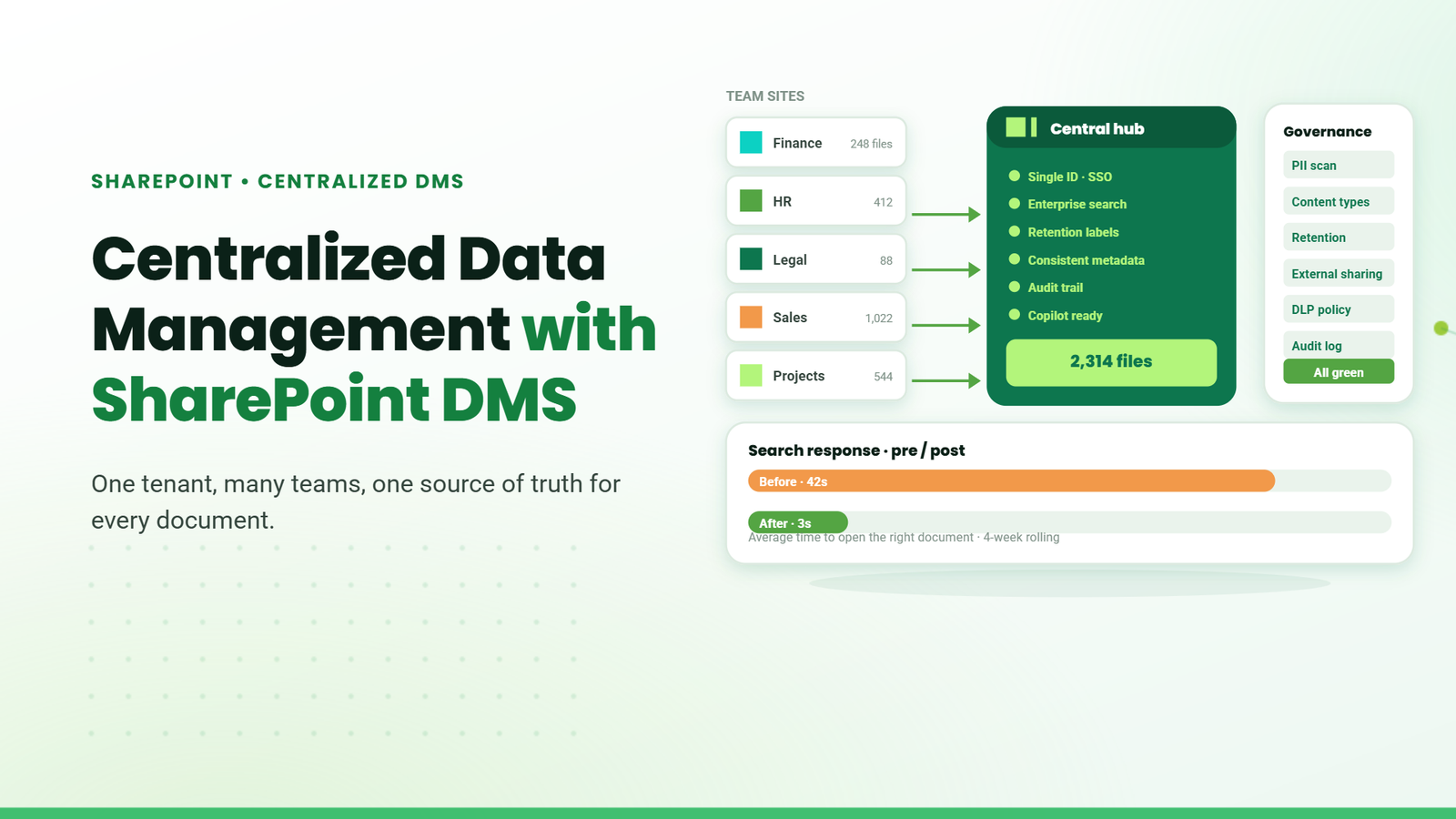
Centralized data management is a game-changer for organizations aiming to simplify document processes and boost team collaboration. With SharePoint’s Document Management System (DMS), you can consolidate all your documents into one accessible platform, making workflows smoother and more efficient.
Key Features of SharePoint DMS for Centralized Data Management
Centralized Administration
SharePoint DMS gives certified administrators complete control over document management from a single repository. This centralization makes it easy to:
- Update content across the organization.
- Configure security settings for sensitive documents.
- Set up and manage the system with minimal hassle.
Having one centralized hub ensures that all your documents are accessible and manageable, reducing time spent on manual updates or hunting for files.
Metadata and Searchability
Tired of wasting time searching for files? SharePoint uses metadata tagging to help you organize and locate documents faster. By tagging files with relevant information like categories, dates, or project names, you can:
- Improve document organization.
- Retrieve files quickly using advanced search capabilities.
- Avoid duplication or misplacement of documents.
Real-Time Collaboration
Collaboration has never been easier. SharePoint DMS lets multiple team members work on the same document simultaneously. Real-time sharing ensures:
- Faster feedback and approvals.
- Reduced revision cycles.
- Increased productivity across teams.
Version Control
Say goodbye to the confusion caused by multiple document versions. SharePoint automatically tracks changes and stores previous versions, enabling you to:
- Restore older versions when needed.
- Maintain data integrity.
- Keep a detailed record of document modifications.
Automated Workflows
SharePoint DMS takes the stress out of repetitive tasks. With automated workflows, you can:
- Streamline processes like document approvals and feedback collection.
- Minimize human errors.
- Save time on administrative tasks.
Enhanced Security
Keeping sensitive information secure is critical. SharePoint’s robust security features include:
- Granular permission settings to restrict access.
- Encryption to protect data during storage and transmission.
- Compliance with industry regulations to safeguard sensitive documents.
Best Practices for Centralized Data Management Using SharePoint DMS
To make the most out of SharePoint DMS, it’s essential to follow best practices that align with your organization’s goals and workflows. Implementing these strategies will ensure your document management system is efficient, secure, and scalable for future needs.
Establish a Clear Document Structure
A well-organized document library is the foundation of effective data management. A clear structure not only makes it easier to find documents but also improves workflow efficiency and reduces the risk of duplication. Here’s how to structure your files:
- Create a Logical Hierarchy: Divide documents into clearly defined libraries and folders based on categories such as departments, projects, or document types. Avoid overly complex structures, as they can confuse users and make navigation cumbersome.
- Use Consistent Naming Conventions: Adopt standardized naming conventions that include meaningful identifiers such as dates, project codes, or document types. Consistency ensures easier recognition and retrieval.
- Apply Metadata Tags: Metadata tagging is crucial for efficient document organization. Use descriptive tags that align with your workflows, such as project names, client details, or document status. This enables quick and accurate searches.
- Archive and Purge Outdated Files: Set up a schedule to review and archive older documents. Remove irrelevant or outdated files to keep the system clutter-free and enhance performance.
Implement Governance Policies
Strong governance ensures accountability, compliance, and the long-term success of your document management system. Without governance, systems can quickly become chaotic and difficult to manage. Best practices include:
- Assign Roles and Responsibilities: Clearly define who is responsible for uploading, approving, and maintaining documents. This reduces errors and ensures accountability.
- Conduct Regular Audits: Periodically review your SharePoint environment to identify inconsistencies, unauthorized access, or outdated content. Audits help maintain data integrity and compliance.
- Define Retention Policies: Create rules for document retention and deletion to comply with legal requirements and avoid unnecessary clutter. Use SharePoint’s built-in compliance tools to automate these policies.
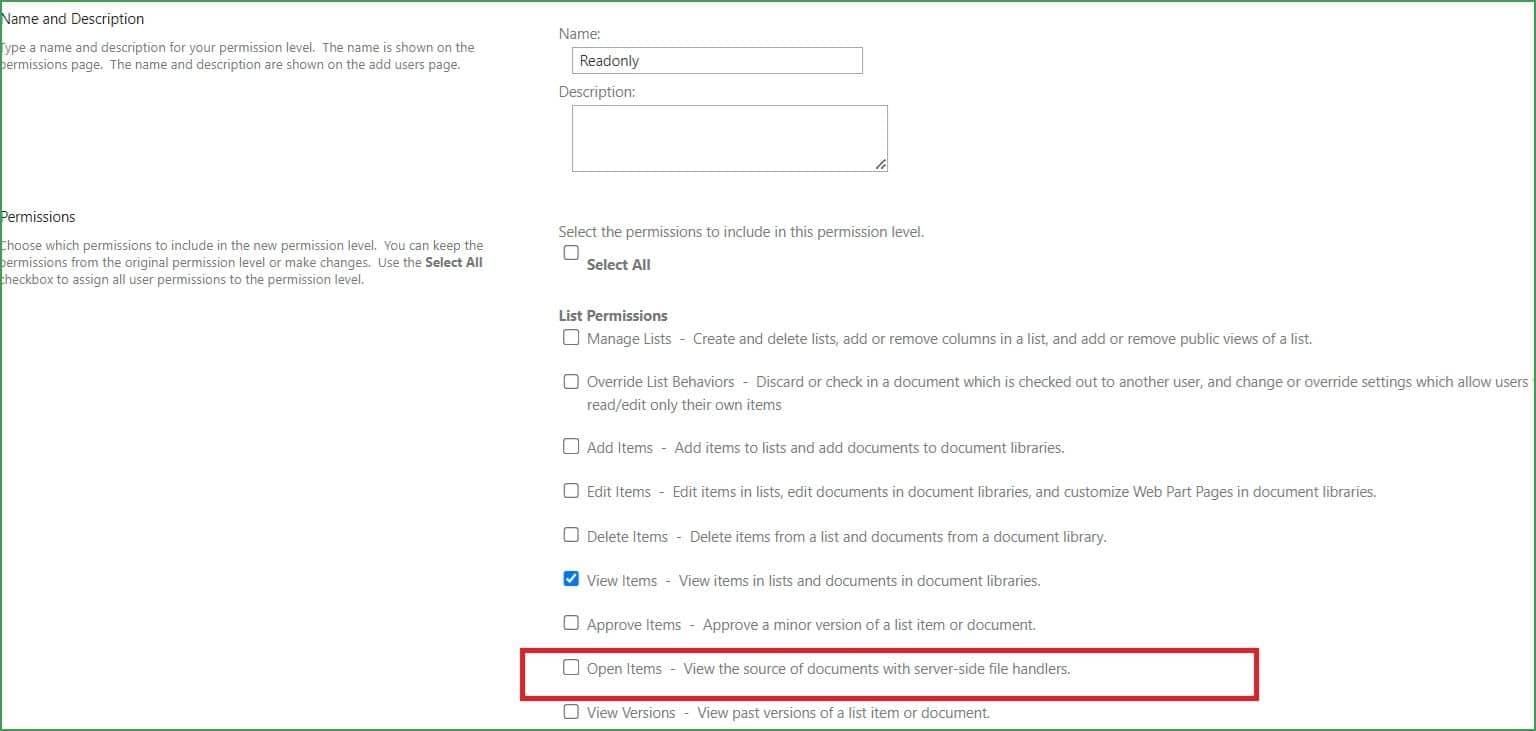
- Set Permissions Wisely: Restrict access to sensitive information by applying granular permissions. Ensure only authorized personnel can access or modify critical documents.
Train Users on Best Practices
A system is only as good as its users. Providing comprehensive training ensures your team is comfortable and proficient with SharePoint features. Key areas to focus on include:
- Collaboration Tools: Teach users how to co-author documents, share files securely, and track changes in real time. Emphasize the benefits of teamwork and efficiency.
- Workflow Automation: Train employees to use SharePoint’s automated workflows for approvals, task assignments, and notifications. This reduces manual intervention and improves accuracy.
- Version Control: Demonstrate how version control works and why it’s critical for maintaining document consistency. Educate users on restoring previous versions if necessary.
- Search Capabilities: Show users how to leverage metadata and advanced search filters to quickly locate documents, saving valuable time.
Monitor System Performance
Regular monitoring of your SharePoint environment ensures it remains efficient and aligned with organizational needs. Use SharePoint’s built-in analytics tools to gain insights into system performance and user behavior. Key actions include:
- Track User Activity: Monitor which documents are accessed most frequently and by whom. This helps identify critical resources and potential bottlenecks.
- Analyze System Usage: Assess storage utilization, workflow performance, and search query patterns. This data can inform decisions about optimizing the system.
- Set Benchmarks and KPIs: Define key performance indicators (KPIs) for your SharePoint DMS, such as document retrieval times, workflow completion rates, or user adoption metrics.
- Plan for Scalability: As your organization grows, so will your document management needs. Regularly review storage capacity, performance metrics, and user feedback to determine when upgrades or expansions are necessary.
Engage in Continuous Improvement
Even with a well-structured system, there’s always room for improvement. Encourage users to provide feedback on their experiences with SharePoint DMS and identify areas that can be enhanced. Consider periodic updates to the system based on technological advancements and evolving business requirements. By fostering a culture of continuous improvement, your organization can maximize the value of its centralized data management strategy.
Table of Contents
Talk to our Microsoft Expert Consultant
Conclusion
SharePoint Document Management System is a powerful tool for centralized data management, offering features like metadata tagging, version control, and automated workflows. By implementing best practices and leveraging its capabilities, your organization can boost collaboration, improve accessibility, and maintain data integrity.
Ready to transform the way your organization manages documents? Dive into SharePoint DMS and experience the difference it can make.
Share this article

About the Author
Frequently Asked Questions
SharePoint Document Management System (DMS) is a platform designed to help organizations store, manage, and collaborate on documents in a centralized and secure environment.
SharePoint DMS enables real-time document sharing and co-authoring, allowing team members to work on files simultaneously. This reduces delays in feedback and approval processes.
Yes, SharePoint seamlessly integrates with Microsoft 365 applications like Teams, Outlook, and OneDrive, as well as third-party tools for enhanced functionality.
SharePoint offers enterprise-grade security features, including role-based access controls, encryption, and compliance with industry standards like GDPR and HIPAA.