

Table of Contents
Quick Answer
A SharePoint list is used to manage records stored in rows and columns, such as requests, tasks, or registers, where each entry is updated independently over time. A SharePoint document library is used to store and manage files, such as reports, policies, or project documents, where version history and collaboration are important. The choice depends on whether you are managing records or files.
If you work with SharePoint, you’ll often come across the question of whether something should be set up as a list or a document library. The choice often looks simple at first, but it becomes complicated once data, files, and automation are involved.
Lists and document libraries serve different purposes, even though they appear similar in SharePoint. Understanding how each one is meant to be used makes it easier to design cleaner sites, avoid rework later, and set things up in a way that scales.
Read on to see how lists and libraries differ and how to choose between them.
What is a SharePoint List?
A SharePoint list is used to store structured data within a SharePoint site. Each entry is saved as an item, with information captured through predefined fields such as text, numbers, dates, choices, or people.
The data can be viewed, filtered, sorted, and updated directly in the browser, making lists suitable for tracking and maintaining records. Lists inherit permissions from the site by default, but access can be adjusted when specific records need restricted visibility.
SharePoint List Templates
Custom Lists
A custom list is created when the data structure does not fit any predefined template. Columns are defined based on the information being captured, and views are configured to present the data in different ways. This type is commonly used as the foundation for custom forms and internal applications.
Built-in List Templates
SharePoint provides predefined list templates that cover common tracking scenarios. These templates come with default columns and views that can be adjusted as needed.
Issue Tracking: An issue tracking list is designed to record problems, defects, or incidents. It includes fields for status, priority, ownership, and resolution details, making it easier to track issues from creation through closure.
Task List: A task list is used to track work items that have owners, deadlines, and completion states. Each task represents a single unit of work, making it easier to follow progress and update status as work moves forward.
Calendar List: A calendar list stores date-based entries such as events, schedules, or milestones. Items are displayed in a calendar view, allowing information to be seen in the context of days, weeks, or months.
Contacts List: A contacts list is used to store and manage people-related information. It typically includes names, phone numbers, email addresses, and roles, and is often used as a shared reference within a site.
Use Cases of SharePoint Lists
- Approval Requests: Used to capture and track requests such as leave, purchases, or access approvals, where each item moves through defined statuses.
- Asset Register: Maintains records of assets with details like serial number, owner, location, and condition, allowing easy updates and filtering.
- Issue Tracking: Records incidents or problems with fields for priority, status, and resolution, making it easier to monitor and close issues.
- Onboarding Checklist: Tracks onboarding steps for new joiners, with each entry representing a task that can be updated as progress is made.
- Master Data: Stores reference information such as categories, locations, or configuration values used across apps, workflows, or reports.
What is a SharePoint Document Library?
A SharePoint document library is used to store and manage files within a SharePoint site. Each document is saved as a file and can have additional information attached through columns such as category, owner, or status.
Document libraries support activities like uploading, editing, and sharing files while keeping everything in a single, organized location. Document libraries support permission control at the library, folder, or file level, making them suitable when access to documents needs to be tightly managed.
Document Library Templates in SharePoint
Custom Document Libraries
A custom document library is created when files need to be stored with specific columns, views, or permission settings. These libraries are commonly used for project files, client documents, or department-specific repositories.
Built-in Document Libraries
SharePoint includes predefined document libraries created automatically for specific site functions.
Site Pages Library: Stores modern SharePoint pages used for intranet content and internal communication. Pages are saved as files and can be versioned and restored when needed.
Site Assets Library: Used to store assets that support pages and site content, such as images, icons, and videos. These assets can be reused across multiple pages within the site.
Picture Library:
Designed for storing and organizing images, with thumbnail previews and basic image management capabilities.
Style Library:
Used mainly in classic SharePoint to store branding-related files such as CSS and JavaScript. This library is typically seen in older or migrated sites.
Use Cases of Document Library
- Project Documentation: Used to store project-related files such as plans, designs, meeting notes, and deliverables, with version history tracking changes over time.
- Policies and SOPs: Maintains controlled documents where only the latest version should be actively used, while older versions remain available for reference.
- Client Files: Stores client-specific documents such as contracts, deliverables, and review files with clear access control and ownership.
- Department Repositories: Acts as a shared document space for departments like HR, Finance, or Sales, replacing traditional shared drives.
- Templates and Reference Files: Stores reusable templates, guides, and reference documents so users always access the latest approved versions.
How do Lists and Document Libraries Work Together?
Lists and document libraries are typically used together to keep records and files separate but connected. Lists hold individual entries, while document libraries store related files, allowing both to be managed without duplication.
For example, a purchase request can be stored as a list item with details like requester, amount, and status, while supporting documents such as quotations or invoices are stored in a document library and linked to it.
Linking Records with Documents
In SharePoint implementations, records are usually stored in a list while related files are stored in a document library. Each list item represents a single record, such as a request, case, or asset, and documents are uploaded separately and linked back to that item.
Files can also be added directly to a list as attachments, but that approach is typically used for small reference files. List attachments offer limited version tracking and are not ideal for collaboration. When documents need full version history, concurrent editing, or reuse across records, storing them in a document library and linking them to the list item works better.
Using Metadata Across Lists and Libraries
Metadata is used to connect and organize information across both lists and libraries. The same columns, such as department, project, or status, can be applied to documents and list items. This allows consistent filtering, grouping, and searching without relying on folders or duplicate data.
Workflow Automation
Workflow automation often starts from a list and acts on documents stored in a library. A list item can trigger approvals, update metadata on related documents, or move files between libraries. This separation makes automation easier to manage and prevents workflows from becoming tightly coupled to file storage.
Sharepoint List vs Library
While lists and libraries often work together, they have distinct purposes. Here’s how they differ.
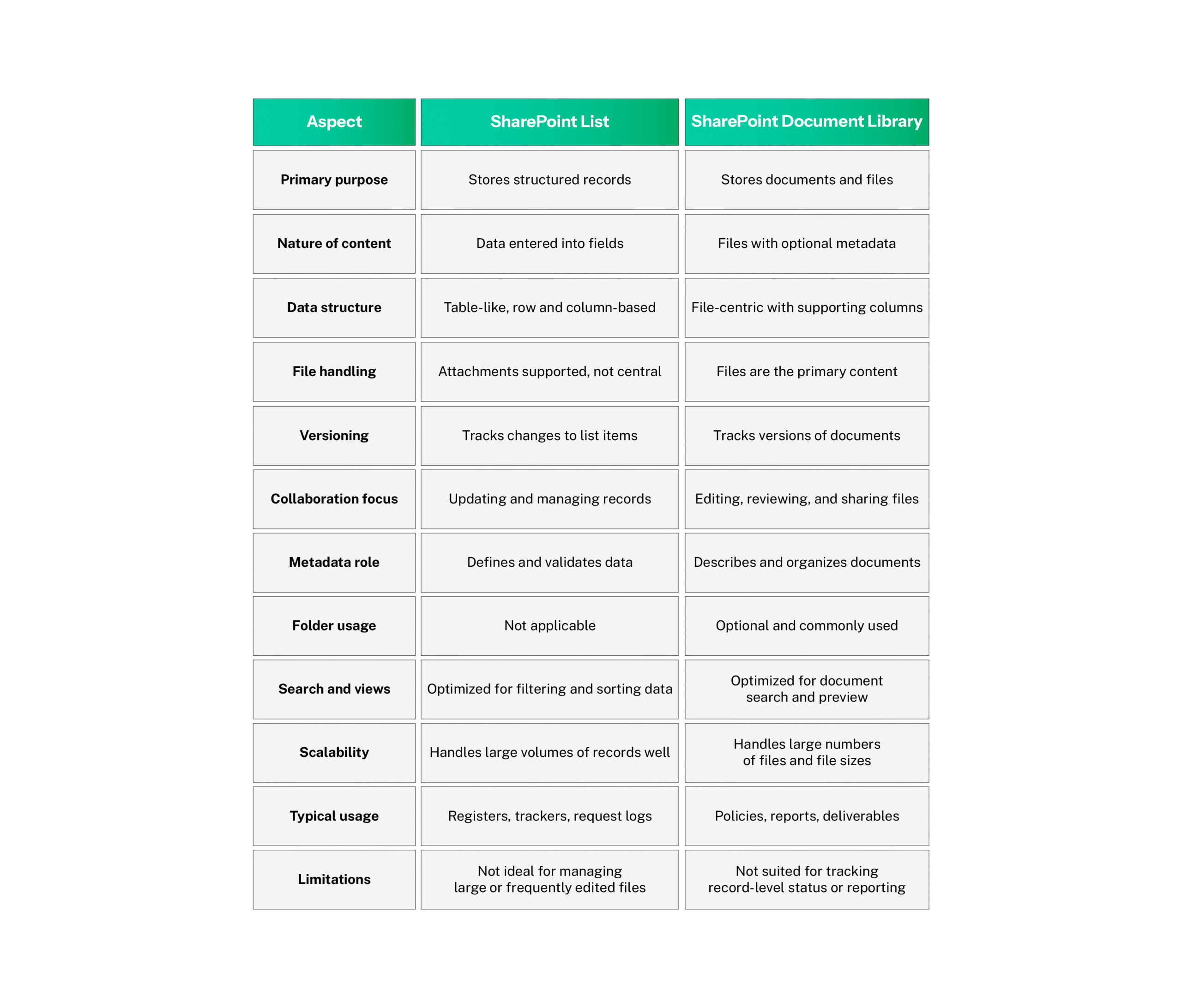
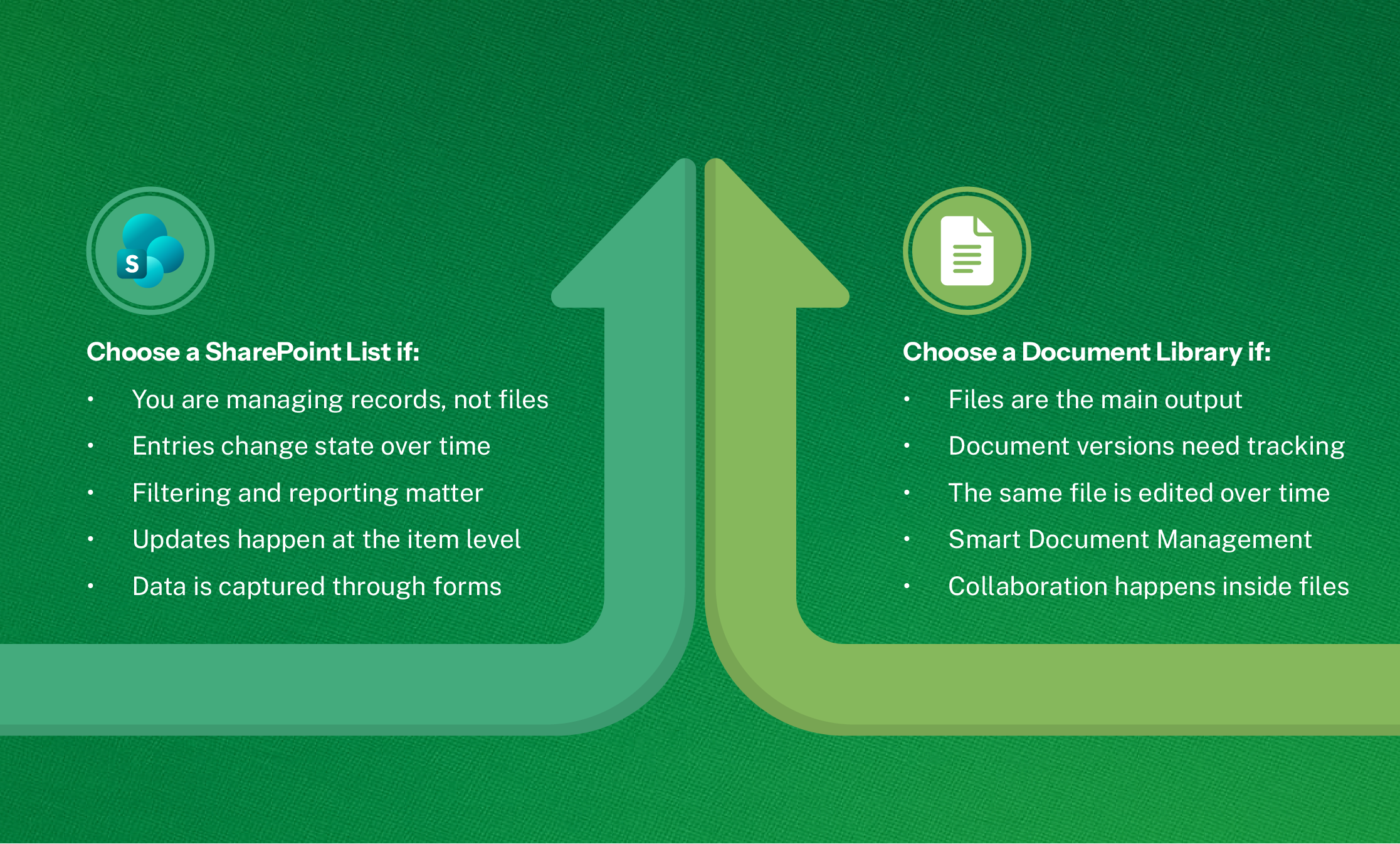
So how do you choose between a list and a library? It comes down to what you need to manage.
Conclusion
Lists and document libraries solve different needs in SharePoint, even though they often appear similar at first. Once you’re clear on whether you’re managing records or files, the choice becomes easier to make. That clarity helps keep sites easier to manage over time.
FAQs on Lists and Document Libraries
Where are lists stored?
Lists are stored within SharePoint. Each list lives inside a SharePoint site, even when accessed through the Microsoft Lists app. The app is only an interface; the data itself is stored and managed in SharePoint.
How do you manage files in SharePoint document libraries?
Files in document libraries are managed through versioning, permissions, metadata, and views. You can upload, edit, and organize documents, track changes over time, and control access, all while keeping files searchable and centrally managed.
How do you create a document library in SharePoint?
A document library is created from the Site contents page in a SharePoint site. You select “New,” choose “Document library,” provide a name, and create it. The library is then ready to store, organize, and manage files.
What are the best practices for SharePoint lists and libraries?
Keep lists focused on records and libraries focused on files. Use metadata instead of deep folders, plan permissions early, and avoid mixing records and documents in one place. This keeps content easier to manage, search, and scale over time.